# Quick Start
Welcome to the official documentation for Lingo Blocks! We'll guide you through setup, integration, and best practices to make the most out of your experience.
To get started, [create your account](https://app.lingoblocks.com/auth).
### Create your assistant
**Create a new chatbot.** Click on “Create Chatbot” button.
**Give your chatbot a name.** Click on the “Create” button.
# Edit Profile
You have full control over the identity and look of your assistant.
**Edit chatbot profile image and name.** Click to edit chatbot profile.
# Custom Instructions
### Introduction
The "Custom Instructions" feature is a core functionality within Lingo Blocks, designed to offer users the ability to tailor the behavior of their AI chatbot or assistant. This document provides a detailed overview of the feature, its applications, and guidance on its utilization.
### Definition
**Custom Instructions** refer to specific guidelines or directives set by a user to influence the chatbot or assistant's response patterns. By establishing these instructions, the AI model can provide answers that adhere more closely to a user's requirements or desired communication style.
### Key Features
**Persistent Memory:** Once implemented, custom instructions are retained and considered for all subsequent interactions, ensuring consistent user-chatbot experience without repetitively inputting preferences.
**Adaptable Use Cases:** Custom instructions can be applied across various domains. Whether your application targets e-commerce, education, or any other sector, the ability to guide your chatbot's responses can be invaluable.
**User-specific Tailoring:** Different users or audiences may have distinct requirements. Custom instructions allow for a refined user experience by addressing those specific needs.
### Usage Instructions
#### Setting Custom Instructions:
1. Navigate to the Custom Instructions section within the Lingo Blocks dashboard.
2. Input your specific instructions or guidelines in the provided field.
3. Save changes to ensure your chatbot or assistant incorporates these directives in future interactions.
#### Modifying or Deleting Instructions:
1. Revisit the Custom Instructions section.
2. Edit or remove the existing instructions as needed.
3. Save changes to update the chatbot's behavior.
# Actions
Learn how to create custom actions by making one or more APIs available to your AI agent.\
\
Actions allow agents to integrate external data or interact with the real-world, such as connecting agents to databases, plugging them into your emails, or making them your shopping assistant, all through APIs.
Actions are defined using the [OpenAPI specification](https://swagger.io/specification/), which is a standard for describing APIs.
### Create a new action
**Navigate to Actions in the dashboard.** Tap the + New button.
**Enter a valid JSON OpenAPI specification** into the Schema input.\
\
*Note:* The Authentication feature is not yet functional. This inconvenience is temporary and will become functional soon.
The code block below is an OpenAPI specification example that uses the Coindesk API to get the real-time price of Bitcoin.
{% code lineNumbers="true" %}
```json
{
"openapi": "3.0.1",
"info": {
"title": "CoinDesk Price Index API",
"description": "An API that provides the current prices for various cryptocurrencies and fiat currencies.",
"version": "1.0.0"
},
"servers": [
{
"url": "https://api.coindesk.com"
}
],
"paths": {
"/v1/bpi/currentprice/{symbol}.json": {
"get": {
"summary": "Get current price for a specified currency or cryptocurrency",
"operationId": "getCurrentPrice",
"parameters": [
{
"name": "symbol",
"in": "path",
"required": true,
"schema": {
"type": "string"
},
"description": "The symbol for the currency or cryptocurrency to get the price for (e.g., BTC, USD, ETH)"
}
],
"responses": {
"200": {
"description": "Current price for the specified currency or cryptocurrency",
"content": {
"application/json": {
"schema": {
"type": "object",
"properties": {
"time": {
"$ref": "#/components/schemas/Time"
},
"disclaimer": {
"type": "string"
},
"bpi": {
"type": "object",
"additionalProperties": {
"$ref": "#/components/schemas/CurrencyPrice"
}
}
}
}
}
}
}
}
}
}
},
"components": {
"schemas": {
"Time": {
"type": "object",
"properties": {
"updated": {
"type": "string",
"description": "Human-readable updated time"
},
"updatedISO": {
"type": "string",
"format": "date-time",
"description": "ISO 8601 formatted updated time"
},
"updateduk": {
"type": "string",
"description": "UK formatted updated time"
}
},
"required": ["updated", "updatedISO", "updateduk"]
},
"CurrencyPrice": {
"type": "object",
"properties": {
"code": {
"type": "string",
"description": "The currency or cryptocurrency code"
},
"rate": {
"type": "string",
"description": "The current rate in the specified currency or for the specified cryptocurrency"
},
"description": {
"type": "string",
"description": "Description of the currency or cryptocurrency"
},
"rate_float": {
"type": "number",
"description": "The rate as a floating-point number"
}
},
"required": ["code", "rate", "description", "rate_float"]
}
}
}
}
```
{% endcode %}
**Tap the Save button.**
**You should now see the custom action** you just created.\
\
*Note:* If the OpenAPI specification is invalid, the action will not appear.
**Test and confirm your new action works** as expected by chatting with your AI agent.
### Troubleshooting
If you need help creating a new custom action, please consider joining our [Discord community](https://discord.gg/K6tCnJtVFy) for support.
# Text
You can add plain text to your assistant's knowledge base to make custom content available during conversations. Navigate to the Lingo Block [dashboard](https://app.lingoblocks.com/auth).
### Create knowledge
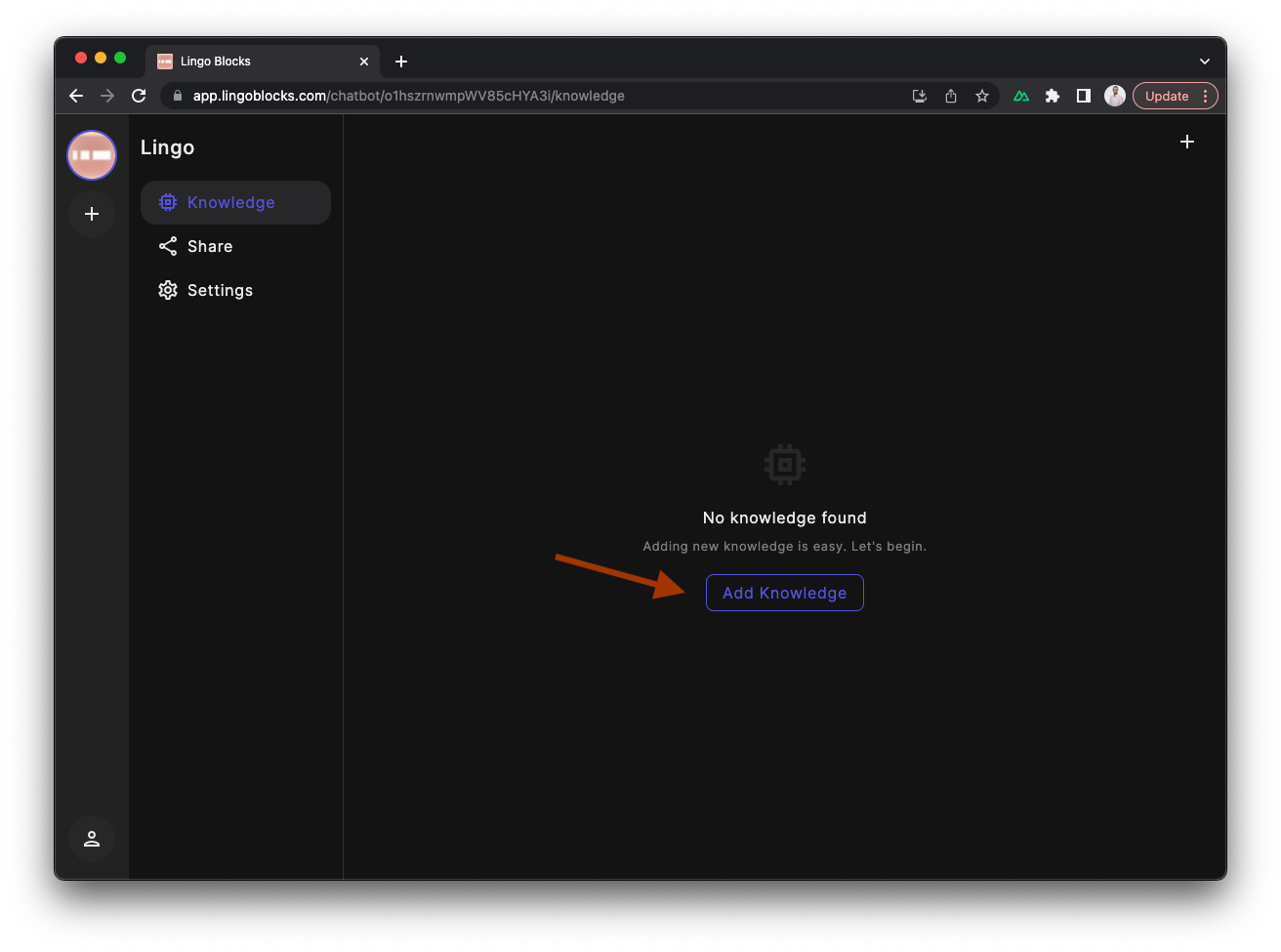
**Add knowledge.** Click on the “Add Knowledge” button.
**Choose your knowledge source.** Pick “Plain Text” to write text.
**Enter text**. Use the Text Editor to paste and edit plain text. Click "Save" to add text to knowledge base.
###
# Website
You can add website content to your assistant's knowledge base to make custom data available during conversations. Navigate to the Lingo Block [dashboard](https://app.lingoblocks.com/auth).
### Create knowledge
**Add knowledge.** Click on the “Add” button.
**Choose your knowledge source.** Pick “Website” to import content from your website.
**Domain**. When you select this option, our tool will attempt to scrape data from the entire website of the provided domain.
**URL**. If you only need data from a specific webpage, use this option. Just paste the desired URL, and the tool will only scrape data from that page.
**Sitemap**. This option allows you to scrape data from all URLs listed in a website’s sitemap.xml.
**Save**. Once you're satisfied with the list of URLs, click "Save" to begin the web scraping process.
**Approximate scraping time**. 10 minutes for every 100 URLs.
###
# Chat Bubble
**Embed chatbot to website.** Copy and paste your chatbot code snippet into your website HTML file.
# Inline Chat
**Add the Website Embed script.** Copy and paste your chatbot code snippet into your website HTML file.
**Mount the chatbot.** In order to mount the chatbot inline, add a "container" element. The chatbot component will be rendered inside the container element. The `id` must be `lingo-chatbot`.
```html
```
Use CSS to define the height and width of the element.
# Getting Started
Introduction
Welcome to the Lingo Blocks API documentation. With our powerful and flexible API, you can seamlessly integrate the capabilities of Lingo Blocks into your platform, mobile application, or even third-party services. This page will walk you through the essential steps to get started.
#### Prerequisites
1. **Lingo Blocks Account**: Ensure you have a registered account on Lingo Blocks. If you haven't, sign up [here](https://app.lingoblocks.com/auth).
# Authentication
To authenticate with the Lingo Blocks API, you will need to make a POST request to the following endpoint:
The **base url** is `https://api.lingoblocks.com`.
#### Authentication
* **Endpoint**: `/v1/chatbot/:id/authenticate`
* **Method**: POST
* **Request Body**:
* `accessToken`: The existing access token for the session (optional).
* **Params**:
* `id`: Your chatbot's unique ID.
* **Response**:
* `accessToken`: The generated or verified access token for the session.
* Note: If an existing `accessToken` is not provided or is invalid, a new `accessToken` will be generated.
# Endpoints
Always remember to handle and display any error messages to users gracefully, and use the `accessToken` for authenticating subsequent requests to the Chatbot API after the initial authentication.
The **base url** is `https://api.lingoblocks.com`.
### **Authenticate Chatbot User**
Authenticate and obtain an access token to communicate with the chatbot.
* **Endpoint**: `/v1/chatbot/:id/authenticate`
* **Method**: POST
* **Request Body**:
* `accessToken`: The existing access token for the session (optional).
* **Params**:
* `id`: Your chatbot's unique ID.
* **Response**:
* `accessToken`: The generated or verified access token for the session.
* Note: If an existing `accessToken` is not provided or is invalid, a new `accessToken` will be generated.
### **Send a Message to Chatbot**
Send a message to the chatbot and receive its response.
* **Endpoint**: `/v1/chatbot/:id/message`
* **Method**: POST
* **Headers**:
* `Content-Type`: application/json
* **Params**:
* `id`: Your chatbot's unique ID.
* **Request Body**:
* `text`: The message you want to send to the chatbot.
* `accessToken`: The access token obtained after authentication.
* **Response**:
* `response`: The chatbot's reply.
* `metadata`: Additional data about the chatbot's response.
### **Get Chatbot Widget Settings**
Retrieve the settings for displaying the chatbot widget.
* **Endpoint**: `/v1/chatbot/widget/:id/settings`
* **Method**: GET
* **Headers**:
* `Content-Type`: application/json
* **Params**:
* `id`: Your chatbot's unique ID.
* **Query Parameters**:
* `accessToken`: The access token obtained after authentication.
* **Response**:
* `settings`: Object containing settings like `name` and `profilePhoto` for the chatbot widget.
# Streaming
Using WebSockets provides the ability to stream responses back to a client in order to allow partial results for certain requests. This improves the perceived responsiveness of applications and offers a better user experience.
The **WebSocket url** is `https://api.lingoblocks.com`.
### Message Streaming
Stream a message response back to a client as it's being generated.
* **WebSocket URL**: `https://api.lingoblocks.com`
* **Requirements**:
* `accessToken`: The existing access token for the session (see [Authentication](/docs/api/authentication)).
* `socket.io-client`: WebSocket client library (see [npm package](https://www.npmjs.com/package/socket.io-client)).
#### Setup and Connection
1. Import `socket.io-client` to create a WebSocket connection.
```javascript
import { io } from "socket.io-client";
```
2. Initialize socket connection.
```javascript
const options = {
transportOptions: {
polling: {
extraHeaders: {
"access-token": ""
}
}
}
};
const socket = io("https://api.lingoblocks.com", options);
```
#### Receiving Messages
* Listen for messages on the `message` event.
* Filter messages by checking if the event data matches `chatbot.responseGenerated`.
* Process the streamed message data.
```javascript
socket.on("message", (eventData) => {
if (eventData.event === "chatbot.responseGenerated") {
console.log("Streaming message data:", eventData.data);
}
};
```

.png?alt=media&token=61255427-a793-49c5-9e6b-5f031ebfc0cc)
.png?alt=media&token=6abb1c46-4f4e-4e22-87d2-ac18d0a4ceff)